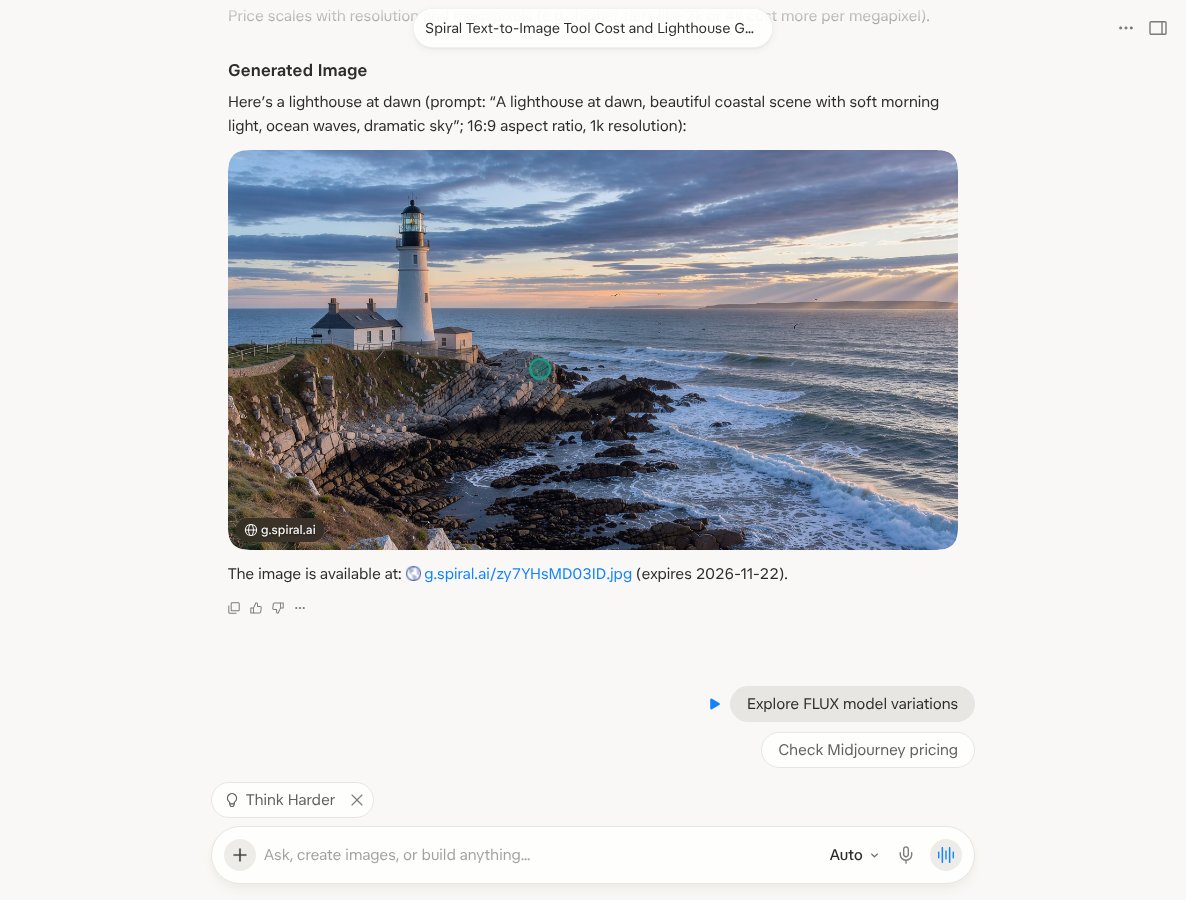
Add Spiral in Grok
Opens Grok’s Connect Apps. Then Add a custom connector.
- Go to Grok › Connect Apps, then Add a custom connector.
- Name it Spiral and paste the link
https://api.spiral.ai/mcp, then Add MCP. - Sign in to Spiral and click Authorize. No API key.
Step by step
1
Add a custom connector
In Grok open Settings › Connect Apps, then Add a custom connector. Name it Spiral, paste this URL, leave
Headers empty and click Add MCP.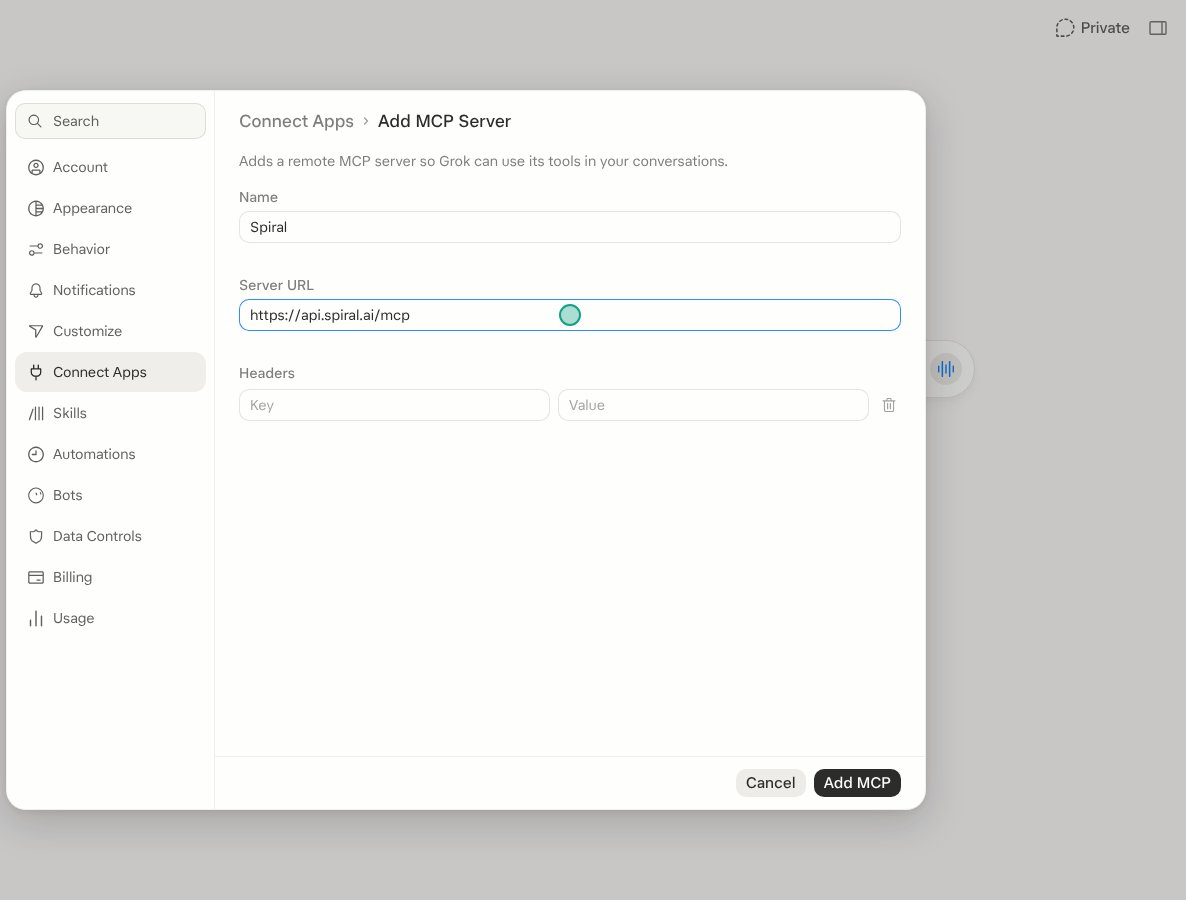
2
Sign in to Spiral and approve
Grok opens Spiral: sign in, pick the organization and click Authorize. Spiral gives the connection its own API
key; Grok never sees it, and you can remove the connection under Settings › Connected apps.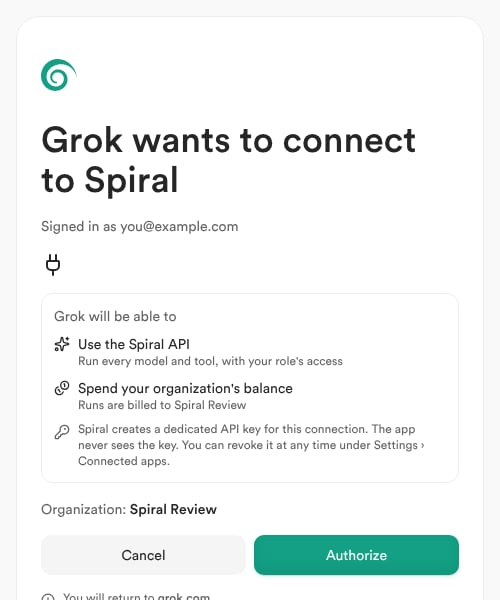
3
Check that it is connected
Connect Apps › Custom shows Spiral as Connected. It works in every Grok chat and Grok bot.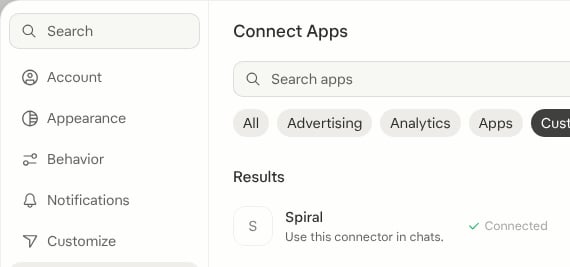
4
Try a starter prompt